You have one card and a big press sheet. N-up repeats that card as many times as the sheet can hold, so every sheet you buy comes back as finished work instead of trim waste.आपके पास एक कार्ड है और एक बड़ी प्रेस शीट। N-up उस कार्ड को उतनी बार दोहरा देता है जितना शीट में समा सके — ताकि जो शीट आपने खरीदी है वो कटिंग के कचरे में नहीं, तैयार माल में बदले।
Pick N-up in the row of coloured tiles at the top, then click Open PDF and choose your card file.ऊपर रंगीन टाइलों की कतार में N-up चुनिए, फिर Open PDF दबाकर अपनी कार्ड फ़ाइल लीजिए।
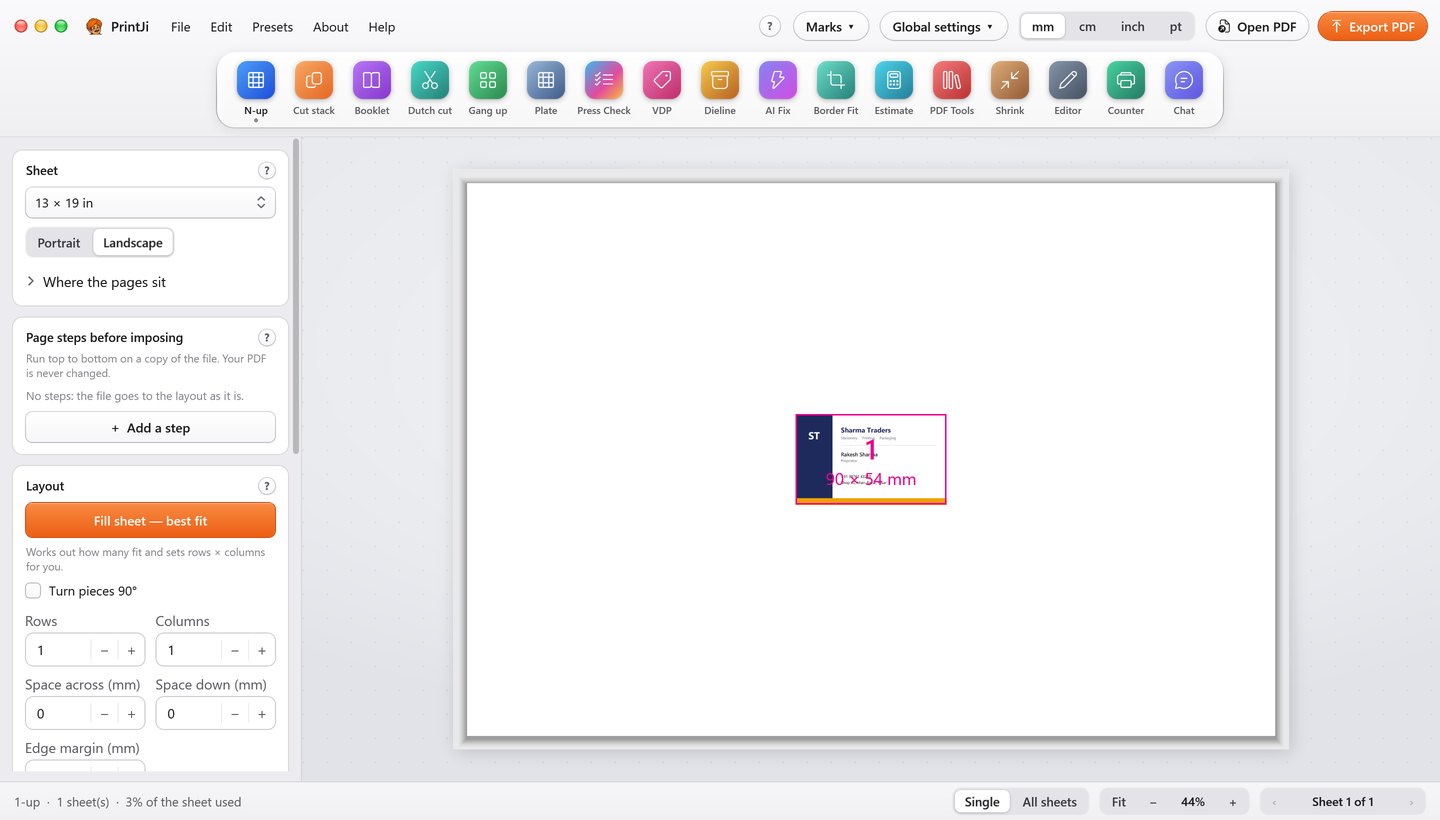
The card lands in the middle of the sheet — alone. Now read the line at the very bottom left:कार्ड शीट के बीच में अकेला आ जाएगा। अब सबसे नीचे बाईं ओर वाली लाइन पढ़िए:
Three per cent. Print it like this and 97% of every sheet you bought goes into the bin.सिर्फ़ तीन प्रतिशत। ऐसे ही छाप दिया तो हर शीट का 97% हिस्सा कचरे में जाएगा।
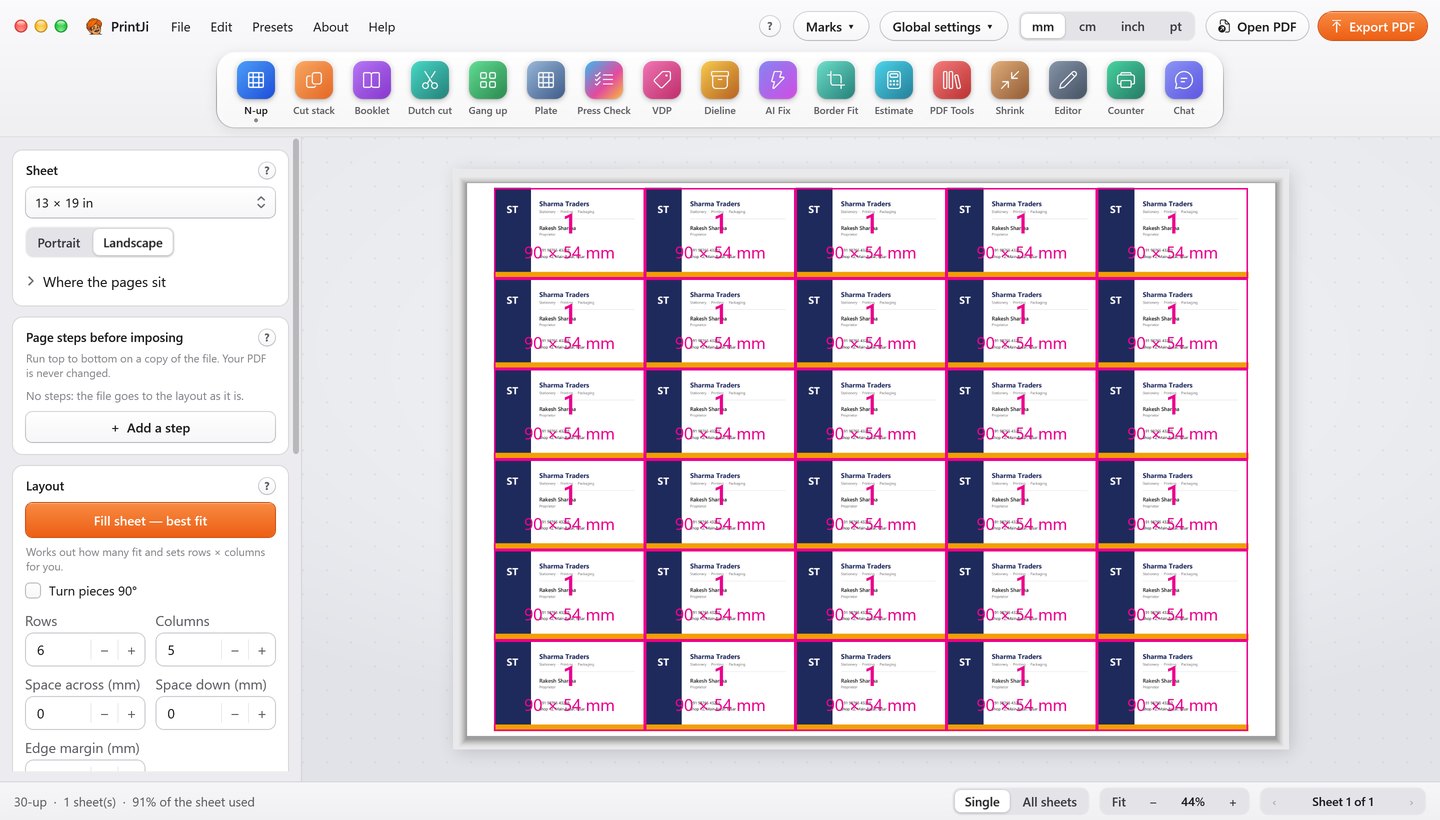
Click Fill sheet — best fit. Rows and Columns fill themselves with the largest number that actually fits; if turning the card sideways fits more, it turns it.दबाइए Fill sheet — best fit। Rows और Columns अपने आप भर जाएँगे — उतने ही जितने सचमुच समाते हैं; और अगर कार्ड को आड़ा करने से ज़्यादा आते हों तो वो आड़ा भी कर देगा।
6 rows × 5 columns = 30 cards on one sheet. Copies becomes 30 too — one full sheet of cards.6 rows × 5 columns = एक शीट पर 30 कार्ड। Copies भी अपने आप 30 हो जाएगा — यानी पूरी एक शीट भर कार्ड।
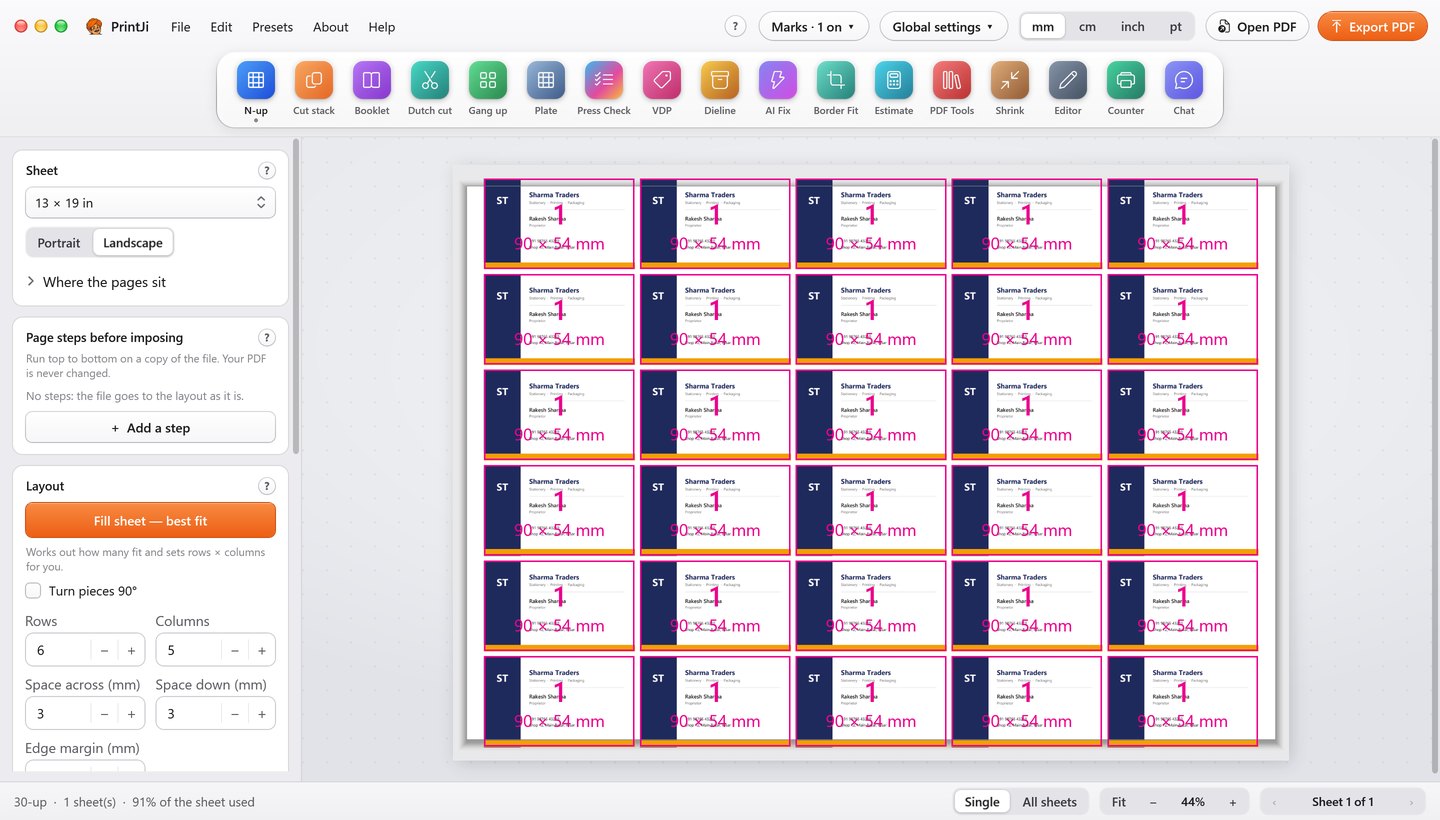
Space across and Space down are the gaps between two cards; Edge margin is the empty band at the edge of the sheet, where the press grippers hold the paper.Space across और Space down यानी दो कार्डों के बीच की जगह; Edge margin यानी शीट के किनारे की ख़ाली पट्टी, जहाँ से मशीन काग़ज़ पकड़ती है।
For cards on an offset press, 3 mm between and 8 mm at the edge is a safe start. Switch on Crop marks in the Marks card on the left and the cutter gets clear lines to work to — the Marks button at the top then reads “Marks · 1 on”.ऑफ़सेट पर कार्ड के लिए 3 mm बीच में और 8 mm किनारे पर — यह सुरक्षित शुरुआत है। बाईं ओर Marks कार्ड में Crop marks चालू कर दीजिए, कटिंग वाले को साफ़ निशान मिल जाएँगे — ऊपर वाला Marks बटन तब “Marks · 1 on” दिखाएगा।
Click Export PDF at the top right and save the sheet. That is the file your plate or your digital press prints — not the original card.ऊपर दाईं ओर Export PDF दबाकर शीट सेव कीजिए। यही फ़ाइल प्लेट या डिजिटल प्रेस पर छपेगी — असली कार्ड वाली नहीं।
Doing this job every week? Save it once with Presets and it appears on the Windows right-click menu — one click on any card PDF and the sheet is ready.यह काम हर हफ़्ते आता है? एक बार Presets में सेव कर लीजिए — फिर विंडोज़ के राइट-क्लिक मेन्यू में आ जाएगा; किसी भी कार्ड PDF पर एक क्लिक और शीट तैयार।
At 1-up the same order would have taken 500 sheets. That is the whole point of this screen.1-up पर यही ऑर्डर 500 शीट माँगता। इसी एक बात के लिए यह पूरी स्क्रीन बनी है।
 PrintJi